> ## Documentation Index
> Fetch the complete documentation index at: https://docs.subtrace.dev/docs/llms.txt
> Use this file to discover all available pages before exploring further.
# Using Subtrace on Elastic Container Service (ECS)
> Monitor all network requests in your AWS ECS cluster using Subtrace.
If you deploy your application on AWS Elastic Container Service (ECS), Subtrace
is the easiest way to monitor the network activity in your cluster in realtime.
### Updating your ECS task to support Subtrace
1. Open **ECS** → **Task definitions**, go to your task and click **Create new revision with JSON**.
 2. In the JSON editor, add the `SYS_PTRACE` Linux capability to your container `linuxParameters` field:
```json theme={null}
"linuxParameters": {
"capabilities": {
"add": ["SYS_PTRACE"]
}
},
```
The `SYS_PTRACE` capability is required because it's what allows Subtrace
to automatically monitor network activity without any code changes or root
privileges. The ECS UI does not expose this field, hence the JSON-based
update to the task definition.
Set the API token that you created in the [Subtrace dashboard](https://subtrace.dev/dashboard)
as an environment variable:
```json theme={null}
"environment": [
{
"name": "SUBTRACE_TOKEN",
"value": "subt_****************"
}
]
```
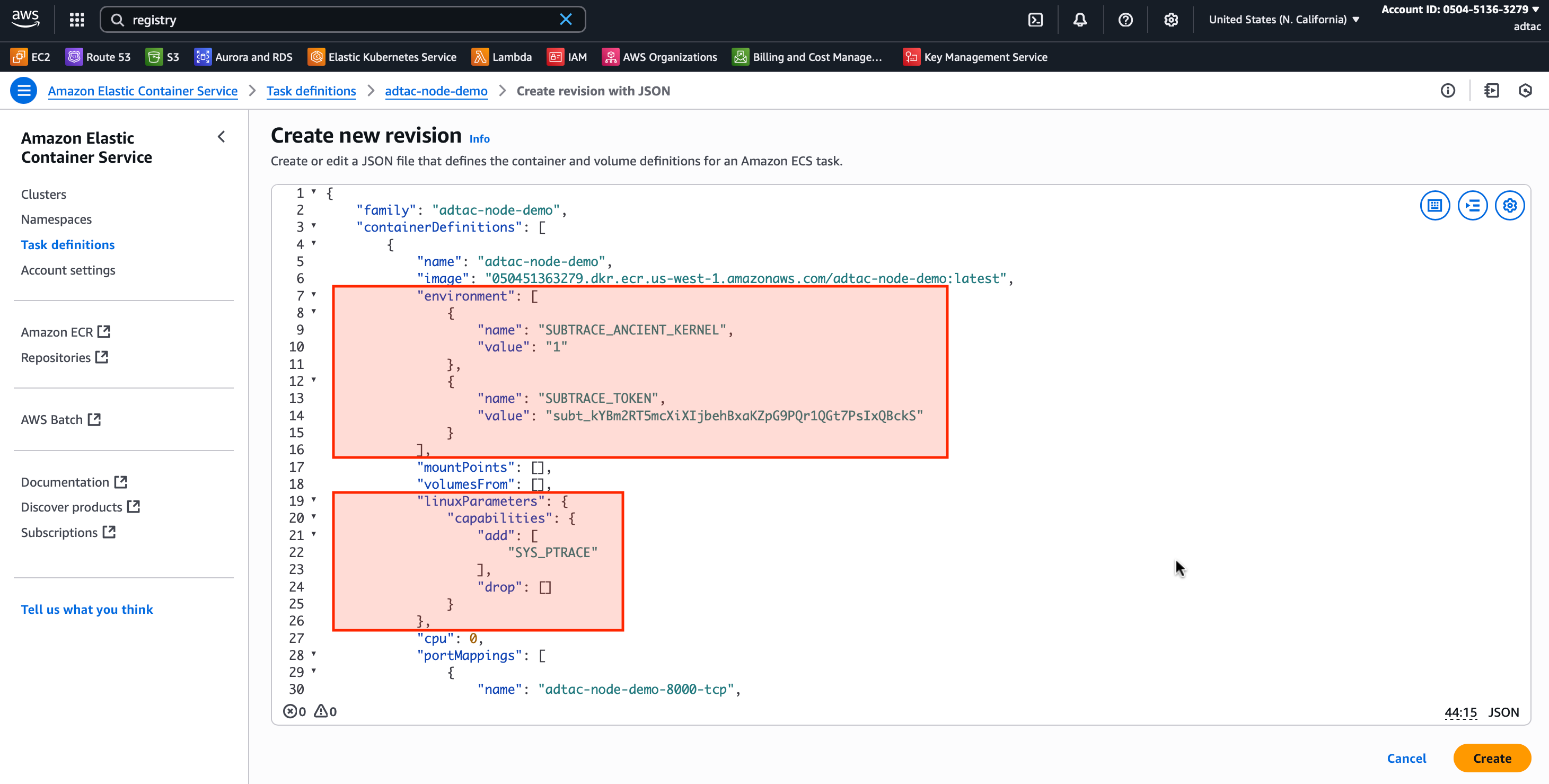
As an example, here's what the task JSON should look like:
2. In the JSON editor, add the `SYS_PTRACE` Linux capability to your container `linuxParameters` field:
```json theme={null}
"linuxParameters": {
"capabilities": {
"add": ["SYS_PTRACE"]
}
},
```
The `SYS_PTRACE` capability is required because it's what allows Subtrace
to automatically monitor network activity without any code changes or root
privileges. The ECS UI does not expose this field, hence the JSON-based
update to the task definition.
Set the API token that you created in the [Subtrace dashboard](https://subtrace.dev/dashboard)
as an environment variable:
```json theme={null}
"environment": [
{
"name": "SUBTRACE_TOKEN",
"value": "subt_****************"
}
]
```
As an example, here's what the task JSON should look like:
 3. Click **Create** to create a new task revision.
***
### Deploying a new revision of your service
4. Back in **Clusters** → **Services** → `my-app-service`, click on **Update service**.
3. Click **Create** to create a new task revision.
***
### Deploying a new revision of your service
4. Back in **Clusters** → **Services** → `my-app-service`, click on **Update service**.
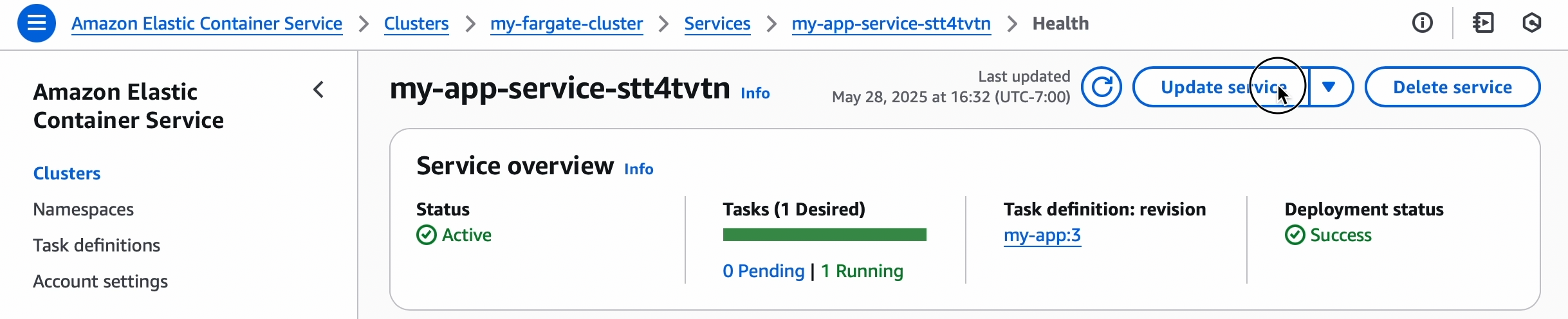 5. In the dropdown, select the revision you just created (or leave blank for “latest”).
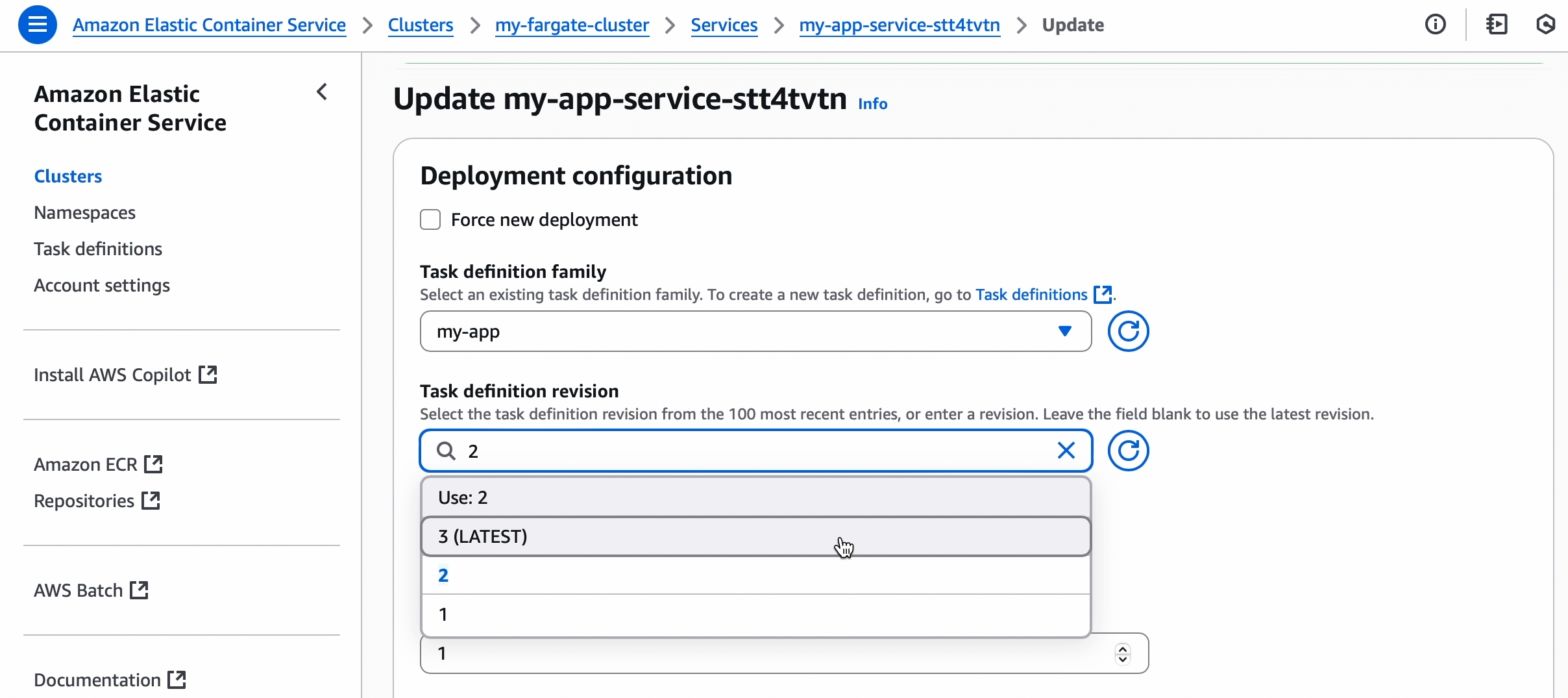 6. Click **Update** at the bottom. ECS will spin up a new task with the new definition; when it’s healthy, the old one will be stopped.
7. Go to the Subtrace UI and see a realtime stream of all network activity in your service.
6. Click **Update** at the bottom. ECS will spin up a new task with the new definition; when it’s healthy, the old one will be stopped.
7. Go to the Subtrace UI and see a realtime stream of all network activity in your service.